
TL;DR
Mobile Device Management (MDM) locks on donated devices prevent refurbishment and force otherwise functional technology straight to e-waste recyclers — keeping it out of the hands of families who need it. The fix takes minutes: contact your IT administrator to unenroll the device, or follow the step-by-step removal methods below for Apple and Windows devices. Removing MDM locks before donating is the single most impactful thing you can do to ensure your device gets a second life.
Introduction
Every donated laptop or tablet that arrives at a refurbishment facility with an MDM lock still engaged is a device that can’t reach the single parent searching for remote work, the student logging into class from a shelter, or the senior navigating telehealth for the first time. It becomes e-waste instead of a lifeline.
At Human-I-T, we see this constantly. Organizations donate devices with the best of intentions — but MDM locks prevent our technicians from accessing, wiping, or preparing those devices for a new owner. The result? Functional hardware gets routed to recyclers when it could have bridged the digital divide.
This guide breaks down what MDM locks are, how to spot them, and exactly how to remove them — with the latest methods for Apple and Windows devices in 2025. A few minutes of your time translates directly into real impact.
Table of Contents
- What is a Mobile Device Management system?
- Why does removing MDM locks before donation matter so much?
- What changed with MDM systems in 2025?
- How do MDM systems get installed in the first place?
- How has Apple’s MDM solution evolved?
- How do you check if your device has MDM installed?
- How do you remove MDM locks from Apple devices?
- How do you remove MDM locks from Windows devices?
- How can you maximize the impact of your donation?
- FAQ
What is a Mobile Device Management system?
MDM is enterprise software that gives IT administrators centralized control over an organization’s smartphones, tablets, and computers. Through MDM, IT teams enforce security policies, deploy software updates, remotely wipe lost or stolen devices, and manage access to corporate resources — ensuring only authorized personnel can view confidential information.
In today’s increasingly mobile workforce, MDM serves as the bridge between security requirements and employee flexibility. It protects organizational data while enabling staff to use their preferred devices for work.
The problem arises when those devices are donated. The same security controls that protected corporate data now lock out the refurbishment technicians trying to give the device a second life.
Why does removing MDM locks before donation matter so much?
MDM-locked devices cannot be refurbished. They represent functional hardware that gets diverted to e-waste recyclers instead of reaching people who need technology for education, employment, and healthcare. Here’s the breakdown:
Refurbishment becomes impossible. MDM locks prevent technicians from accessing devices or clearing memory — both necessary steps to protect your sensitive information and prepare the device for a new owner.
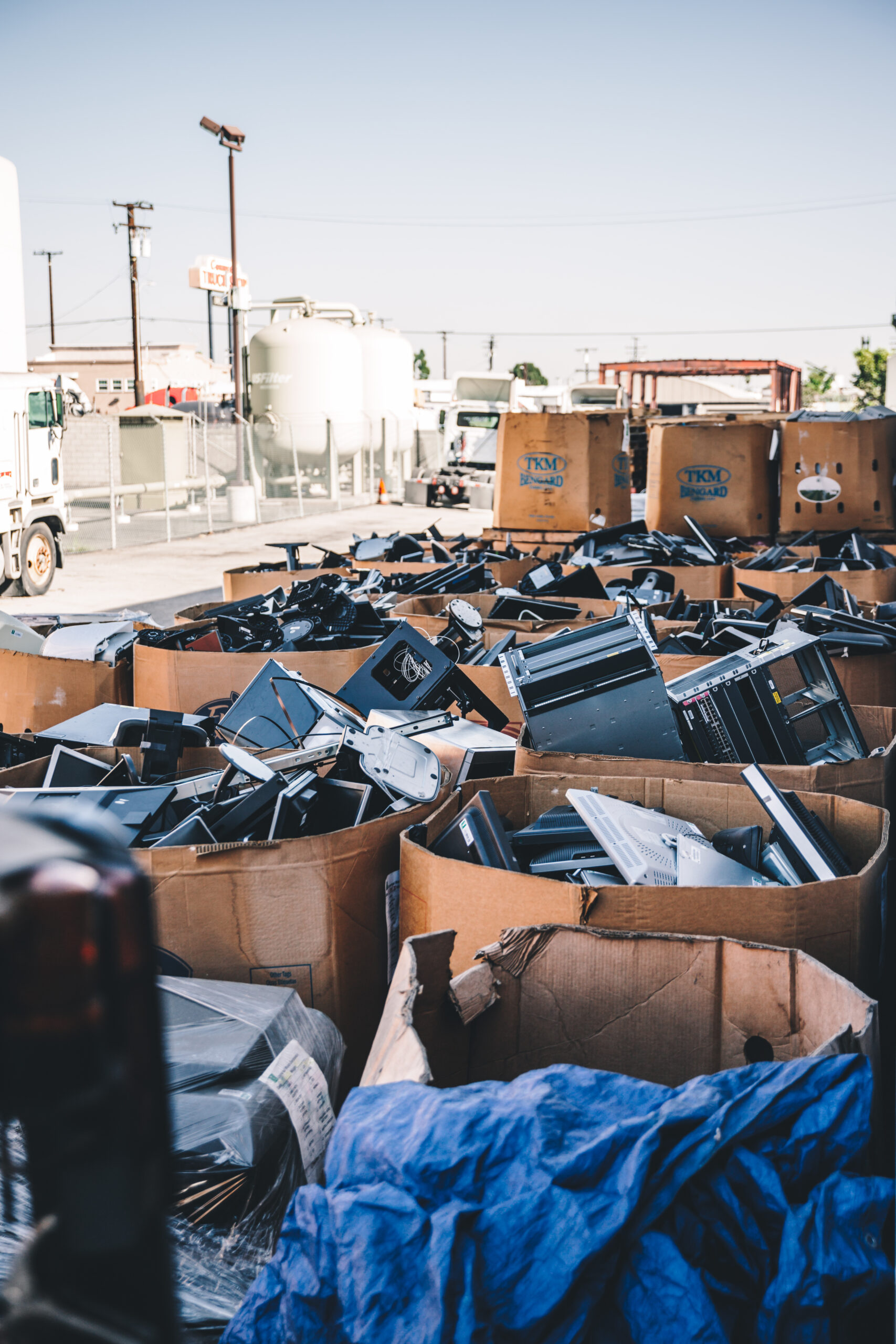
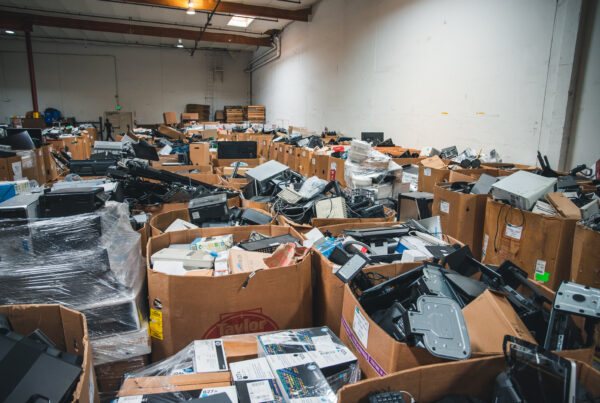
Locked devices go to waste. When a device can’t be refurbished and redistributed, it must be sent to e-waste recyclers. That’s one more contribution to the growing e-waste crisis, and one fewer device reaching someone who needs it.
Resources get stretched thin. Every MDM-locked device that arrives at a refurbishment facility consumes staff time that could have been spent processing multiple unlocked devices.
The environmental and social costs compound. Each unusable device is both a missed opportunity to provide essential technology to a working family and an unnecessary addition to the world’s growing pile of electronic waste.
Removing MDM locks before donation takes minutes. The downstream impact lasts far longer.
What changed with MDM systems in 2025?
Both Apple and Microsoft have made significant changes to their MDM ecosystems — changes that affect how profiles are installed, detected, and removed from devices.
Apple MDM updates
Apple has transformed its MDM approach in several important ways:
Account-driven user enrollment now replaces profile-driven enrollment. Starting with iOS 18, Apple built the enrollment process directly into the Settings app, making enrollment simpler but potentially more confusing for users trying to identify whether MDM is installed.
Declarative device management has expanded significantly. According to Apple’s enterprise documentation, software updates can now be managed entirely with declarative device management, replacing MDM profiles for software update restrictions, settings, and commands.
Enhanced security controls in iOS/iPadOS 18+ include more granular controls for Safari extensions, disk management settings, and additional restrictions announced during WWDC 2024.
Activation Lock management has been simplified. According to Applivery, Apple has streamlined the activation lock removal process through Apple Business Manager and Apple School Manager, allowing administrators to remove locks based on both users and devices — even when activated with a personal Apple Account.
MDM server migration is now possible without wiping devices. At WWDC 2025, Apple introduced the ability to migrate managed devices to a new MDM server without wiping or re-provisioning — administrators can set a migration deadline, notify users automatically, and the device shifts seamlessly.
Microsoft MDM updates
Microsoft’s Intune platform has also seen significant changes:
OS support requirements have increased. Microsoft Intune now requires iOS/iPadOS 17+ and macOS 14+ for user-based management methods, with annual retirement of older OS versions. Android 10 or higher is also required.
Enhanced device attestation capabilities verify secure device enrollment by storing credentials in device hardware (TPM 2.0), providing additional security layers during the enrollment process.
Extended compatibility now includes support for additional platforms, including Apple Vision Pro (visionOS) devices with more comprehensive control options.
These updates affect how MDM profiles are installed and removed, so use the most current methods for detection and removal outlined below.
How do MDM systems get installed in the first place?
MDM solutions are installed by IT administrators or authorized personnel with administrative access. While the specifics vary by solution, the general process follows a consistent pattern:
- The organization registers for an MDM service and creates an account with the provider
- The administrator receives a unique URL or server information for enrolling devices
- Devices are enrolled by entering the URL or server information, which initiates the download and installation of an enrollment profile
- Once enrolled, the administrator configures settings and policies to manage and secure the device
- The MDM solution then allows remote management — pushing updates, modifying settings, and enforcing security controls
Understanding this chain matters for donation. The organization that enrolled the device is the one best positioned to unenroll it.
How has Apple’s MDM solution evolved?
Apple’s Device Enrollment Program (DEP), now integrated into Apple Business Manager, emerged following the iPhone’s workplace adoption in 2007. The system automates device enrollment and security policy enforcement from first activation, allowing organizations to manage devices without physical access.
What distinguishes Apple’s approach is its balance of security and privacy. According to Computer World, recent updates to iOS 18 provide more granular administrative controls while enhancing user consent mechanisms for managed devices.
The system facilitates capabilities that are particularly valuable for organizations donating technology:
- Streamlined organization-linked Activation Lock management
- Automated configuration profile deployment
- Clear pathways for removing management when transferring ownership
These features enable proper MDM removal before devices change hands — essential for successful refurbishment and redistribution.
How do you check if your device has MDM installed?
Before donating, verify every device. Here’s how to detect MDM on both platforms.
For Apple devices
- Open the Settings app
- Tap General
- Look for VPN & Device Management (iOS/iPadOS 16+) or Profiles & Device Management (older iOS versions)
- If you see a profile listed, the device is being managed by MDM
Supervised Apple devices often display a message on the lock screen indicating the device is being managed. With the iOS 18 shift to account-driven enrollment, the profile may be less immediately visible — check the VPN & Device Management section carefully.
For Windows devices
- Open the Settings app
- Click Accounts
- Look for Access work or school (Windows 10) or Work or School account (Windows 11)
- If you see an account or connection listed, the device is likely managed by MDM
You can also verify on Windows 10 or 11 by pressing Windows key + R to open Run, typing msinfo32, pressing Enter, and checking under System Summary for "MDM" information.
How do you remove MDM locks from Apple devices?
Method 1: Contact your IT administrator (recommended)
The most reliable approach — request that your IT department handle removal directly:
- Contact your organization’s IT administrator
- Request that they unenroll the device from your MDM solution
- For Apple Business Manager or Apple School Manager devices, ask them to release the device from their inventory
- Confirm the profile has been removed before donating
Method 2: Remove the profile manually (if accessible)
If you have administrator credentials and the device is accessible:
- Open Settings
- Go to General > VPN & Device Management (or Profiles & Device Management)
- Select the MDM profile
- Tap Remove Management
- Enter the administrator credentials when prompted
Method 3: For Apple Business/School Manager devices
For devices enrolled through Apple’s deployment programs:
- The organization administrator logs into Apple Business Manager or Apple School Manager
- Navigate to the Devices section
- Select the device(s) to be released
- Choose Release Device from the actions menu
- This disassociates the device from the MDM server
For organization-linked Activation Lock (introduced in iOS 18+), administrators can now remove Activation Lock directly through the ABM/ASM portal for devices their organization owns, as confirmed by Apple Support. Multiple sources, including Phobio, confirm this can be done by locating the device by serial number and selecting the Activation Lock removal option.
How do you remove MDM locks from Windows devices?
Method 1: Remove through Settings (recommended)
If you have administrator access:
- Open Settings
- Go to Accounts > Access work or school
- Select the work or school account
- Click Disconnect
- Follow the prompts to remove the account
Method 2: Using PowerShell (for IT administrators)
IT administrators can unenroll devices programmatically:
- Open PowerShell as Administrator
- Run the command:
Get-MDMDeviceWithoutEnrollment - Identify the device to unenroll
- Run:
Remove-MDMDeviceWithoutEnrollment -DeviceID "device_id"
Method 3: For Intune/Microsoft 365 devices
For devices enrolled through Microsoft’s MDM solutions:
- The organization administrator logs into the Microsoft Endpoint Manager admin center
- Navigate to Devices > All devices
- Select the device(s)
- Choose Delete to remove the MDM enrollment
- This unenrolls the device from the MDM server
How can you maximize the impact of your donation?
Every device we receive with an MDM lock is another device we can’t use to empower someone with access to technology. That’s not an abstraction — it’s a working parent who doesn’t get a laptop, a student who stays disconnected, a senior who can’t access telehealth.
By taking a few minutes to remove MDM locks before donation, you dramatically increase the positive impact of your contribution:
- Verify all devices for MDM locks before donation using the detection methods above
- Contact your IT department early in the donation process to coordinate MDM removal
- Test each device after MDM removal to ensure it’s fully accessible
- Share this guide with colleagues involved in technology donation decisions
- Include a note with your donation confirming MDM locks have been removed
The more organizations that adopt these practices, the closer we get to a world where every donated device reaches someone who needs it.
Looking for more donation information?
We’re here to help every step of the way. Call us at 888-391-7249 and a knowledgeable representative will walk you through any concerns. Prefer email? Reach out at donate@human-i-t.org and we’ll respond promptly.
For a comprehensive overview of our donation process — including drop-off locations and pickup options — visit our donation page at human-i-t.org/donate-technology. You can also explore our e-waste services and data destruction pages to learn more about our secure, environmentally responsible approach to technology refurbishment and redistribution.
Contact us today at 888-391-7249 to learn how your organization can make a positive impact on our planet and its people by donating enterprise technology — MDM-free and ready for a second life.
FAQ
What happens to donated devices that still have MDM locks?
Devices that arrive with active MDM locks cannot be accessed, wiped, or refurbished. Our technicians can’t clear your sensitive data or prepare the device for a new owner. These devices must be routed to e-waste recyclers rather than being redistributed to families who need them — a waste of functional hardware and a missed opportunity for digital inclusion.
Can I remove an MDM lock myself without contacting IT?
In some cases, yes. If you have administrator credentials and the MDM profile allows manual removal, you can remove it through your device’s Settings app. However, devices enrolled through Apple Business Manager, Apple School Manager, or Microsoft Intune typically require an administrator to release the device from the organization’s inventory. Contacting your IT department first is always the most reliable path.
Does a factory reset remove MDM locks?
Not always. A factory reset will not remove MDM profiles on devices enrolled through Apple Business Manager or Apple School Manager — the device will automatically re-enroll upon activation. For Windows devices managed through Intune, a reset may also trigger re-enrollment. The MDM must be removed at the server level by your organization’s IT administrator before the device can be fully freed for donation.
How does donating MDM-free devices help close the digital divide?
Every unlocked device Human-I-T receives can be securely wiped, refurbished, and redistributed to income-qualified families who lack access to technology for education, employment, and healthcare. Donating MDM-free devices also keeps functional electronics out of landfills, reducing e-waste while extending the lifespan of existing hardware. It’s digital equity and environmental justice in a single action. Fill out the technology donation form today.
Does Human-I-T accept devices that still have MDM locks?
We accept all donated technology, but devices with active MDM locks cannot be refurbished for redistribution and must be processed as e-waste instead. To maximize your donation’s impact, we strongly encourage removing MDM locks before donating. If you need guidance, call us at 888-391-7249 — we’ll help you through the process.
This blog post was originally published on March 6, 2023, and has been updated with the latest information as of May 2025.